
Video Player - OPlayer
OLIMSOFTVideo Players & Editors
3.7484.00 Reviews
- Version
- 6.00.03
- Installs
- 100.00K
- Age Rating
- Everyone
Screenshots
Our Review of Video Player - OPlayer
 Analysis by Appyee
I tend to reach for a dedicated video player when a clip refuses to open in the default gallery app or when I want more control than basic play and pause. Video Player - OPlayer is built for that sort of library: it brings local playback, a broad range of formats, and URL streaming together in one place. My main impression is that it can save time when your videos come from different sources, though it makes most sense if you will actually use those extra options.
A player for a mixed video library
OPlayer is a paid video player from OLIMSOFT, currently at version 5.00.43. It costs $4.99, with optional in-app purchases ranging from $0.99 to $2.99 per item. It has a 3.9 average from around 9,500 ratings, and more than 100,000 installs. The app is rated for Everyone and has been available since April 16, 2013, so it is a long-running option rather than a new player asking you to trust an untested idea.
That history is useful context, but it is not proof that every part of the experience will suit every phone or every video. I would judge it by a practical question: do you regularly run into files that your standard player will not handle, or do you need playback controls that your gallery does not offer? If not, the built-in option may already be enough. If you do, OPlayer’s combination of local files, subtitles, and network playback is more relevant than a long feature checklist.
Getting Started with OPlayer
First things first, installing Video Player - OPlayer was a breeze. Available for both Android and iOS, you can easily find it on the respective app stores. Once downloaded, the setup is straightforward, guiding you through a few necessary permissions to get things going.
As soon as you open the app, you're greeted with a clean and intuitive interface. I didn't need to scratch my head or hunt for a user manual. Everything was laid out nicely, with video files from my device already organized and ready to be played. It's like the app read my mind and knew exactly what I was looking for.
Where it fits into a normal day
Picture a train ride with a few episodes saved on your phone, plus a lecture recording someone sent in an unfamiliar format. A basic gallery player may open the familiar clip and fail on the other one, leaving you searching for a converter or another app. OPlayer’s broad format support is useful here because the point is to try playback directly rather than build a separate conversion step into your routine. That does not guarantee every file will work—the file itself and the device still matter—but it gives this kind of player a clear purpose.
For a calmer workflow, I would use it as the playback destination for videos I already keep on the device, rather than treating it as a streaming service or a replacement for every media app. Before a trip, open a couple of the actual files you plan to watch and check that audio and subtitles behave as expected. Testing at home avoids discovering a compatibility issue when you have no time or connection to troubleshoot.
Features That Stand Out
Alright, let's dive into what makes this app a notch above the rest. One of the first things that caught my attention was the wide range of file formats it supports. From MP4, AVI, to MKV and beyond, OPlayer handles them all without breaking a sweat. It's like the Swiss Army knife of video players.
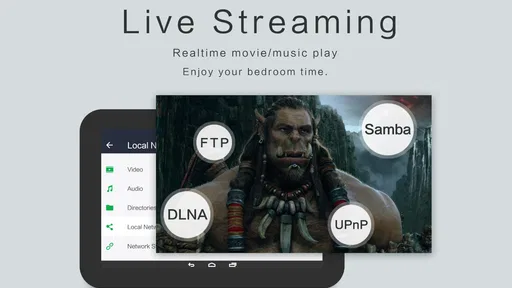
Another nifty feature is its ability to stream videos directly from a URL. This is perfect for those moments when you can't be bothered to download a video first. Just paste the link, and boom, you're watching your favorite content in seconds.
URL playback is best thought of as a shortcut for a video address you can access, not as a promise that every web page or protected streaming service will play. A direct media URL and a page that embeds a video are different things, and access can also depend on the source. If a link does not work, I would first check whether it points to the video itself and whether it is reachable, rather than assuming the player is broken.
There is a useful trade-off here compared with the usual alternatives. A phone’s built-in player is often the simplest choice for common files and everyday camera clips; a dedicated specialist player is more appealing when you want to bring varied files into one playback routine. OPlayer sits in that second camp. It is not necessarily a better place to browse, organize, or discover content, but it can be a more convenient place to play a file once you already have it.
I also found the subtitle support to be pretty robust. Whether you're streaming or watching downloaded content, adding subtitles is seamless. You can adjust the font size and even sync them if they're a tad off. It’s these little details that make a huge difference.
When subtitles drift, I find it helps to distinguish a constant offset from a mismatch that grows over time. Sync adjustment is useful for the first case: make a small change, then check a line of dialogue near the beginning and another later on. If the timing gets progressively worse, the subtitle file may not match that particular video version, and repeated tweaking can become more hassle than it is worth. Keeping subtitle and video files together also makes the handoff easier when you switch between clips.
Performance and Usability
Now, let's talk about performance. In my experience, OPlayer runs smoothly, even when playing high-definition videos. No annoying buffering or lagging to ruin the viewing experience. The app also offers hardware acceleration, which optimizes performance and conserves battery life. Trust me, your phone will thank you for this.
Playback can still depend on the video, the device, and whether you are opening a local file or streaming from a source. For URL playback in particular, a pause may come from the connection or the source rather than the player. When a video stutters, I would compare a local file with the network stream before changing settings; that quick check can tell you whether to troubleshoot the connection or the playback path.
The gesture controls are another aspect I appreciated. Simple swipes for volume control, brightness, and skipping through video tracks make the experience feel modern and effortless. It's all about making life a little easier, right?
Gesture controls are convenient once they become familiar, but they can also cause accidental changes if you are holding the phone one-handed or passing it to someone else. I would test the controls on a short clip before settling in for a film, especially if you tend to adjust brightness through the system controls. A dedicated player’s extra gestures are most valuable when you use them deliberately; they are less helpful if they make basic playback feel unpredictable.
Customization and Extras
If you're like me and love personalizing your apps, you’ll appreciate the customization options available here. You can tweak the interface theme to suit your mood, and even rearrange the playback controls to your liking. It feels like your very own custom-built video player.
There is a practical reason to adjust controls beyond appearance: putting the actions you use most within easy reach can make a long video easier to manage without interrupting it. I would keep the layout simple at first, then change it only after noticing which controls I repeatedly reach for. That way, customization solves a real annoyance instead of becoming another setup task.
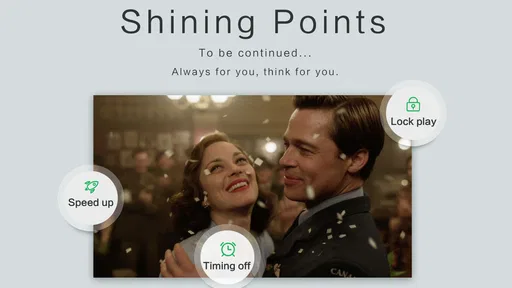
And let's not forget about the sleep timer. Ever dozed off while watching a late-night movie? Set the timer, and the app will take care of pausing the video for you. It’s the kind of thoughtful feature that makes OPlayer stand out.
The timer is particularly useful when I want a video playing while winding down but do not want it to continue all night. It also makes the app a reasonable choice for listening to a spoken recording while resting, provided the material is already available to play. I would set the timer before getting comfortable, rather than relying on remembering to stop playback later.
Who should pay for it, and who can skip it
The price changes the decision. Since OPlayer is not a free default utility, I would consider whether its format flexibility, subtitle adjustments, URL playback, and playback controls solve problems I encounter often enough to justify a separate purchase. Someone who mostly watches ordinary phone videos may be happier sticking with the included player. Someone who regularly receives assorted video files, watches subtitled material, or wants a dedicated place for offline clips has a more convincing reason to try it.
The optional in-app purchases are another point to consider before committing. They are separate from the app’s purchase price, so I would check what an offered item does in the app before spending more. The right choice depends on your own workflow, not on assuming that every extra is necessary for basic playback.
On Android, the minimum operating system requirement is 6.0. That gives users on older supported devices a point to check before installing, while anyone on a newer system should still make sure the version in their store is compatible with their device. The app is also available on iOS, but I would make the purchase decision within the store for the platform I actually use rather than assuming that buying it once covers both.
What continued use may reveal
For existing users, a current version number is a helpful way to identify the build they are considering, but it does not by itself explain what changed from an earlier release. I would not treat the age of the app or the version label as evidence of a particular new feature. What matters in day-to-day use is whether the version available on your device opens your usual files, retains a comfortable control layout, and handles the sources you rely on.
If you already have an older copy, test the files and subtitle workflows that matter to you after moving to a newer build. Keep one local video and one subtitle example handy, and try a URL only if that is part of your normal routine. This gives you a useful comparison without changing several habits at once. If something behaves differently, you can narrow down whether it relates to the file, the source, or your setup.
The main gap to keep in mind is that a flexible player cannot fix every problem around a video. It cannot make an inaccessible URL reachable, turn a mismatched subtitle into a perfectly timed one automatically, or guarantee that every unusual file will play identically on every device. For a user who wants an effortless, fully managed media library or a subscription-based streaming catalog, a different kind of app will be a better fit. OPlayer’s appeal is narrower and more practical: it focuses on playing the files and streams you bring to it.
Final Thoughts
To wrap things up, Video Player - OPlayer is a versatile, user-friendly app that delivers on its promises. Whether you're a casual viewer or a power user, it has something to offer for everyone. With its extensive format support, seamless streaming, and thoughtful features, it’s a must-have for anyone serious about their mobile video experience.
If you're ready to take your video playback to the next level, don't hesitate to give OPlayer a try. Download links are readily available on our site, so go ahead and check it out. You won't be disappointed!
My bottom line
I would recommend it most to people who already know why their default player falls short: an unsupported file, subtitles that need tuning, or a need to play an accessible video URL without first saving it. The strongest reason to choose it is the way those jobs sit together in one mobile player. The main reason to pass is equally clear: if your current player already handles your usual videos, paying for a second one may add little to your day.
Before deciding, think of one real file you have struggled to play and one viewing habit you would like to make easier. If OPlayer addresses both, its specialized controls and broad format approach may earn a place on your phone. If not, the default option is likely the more sensible choice, and there is no need to add another app just for the promise of flexibility.
Verdict
Strengths of Video Player - OPlayer
- Supports a wide range of video formats.
- User-friendly interface with intuitive controls.
- Offers subtitle customization options.
- Includes background playback feature.
- No ads in the paid version.
Limitations of Video Player - OPlayer
- Some features locked behind paywall.
- Occasional lag on older devices.
- Limited cloud storage integration.
- In-app purchases can be pricey.
- Free version contains ads.
Similar Picks in This Category
View All
Google TV
Google LLC3.9

iTunes
Apple4.7

YouTube
Google LLC3.8

MX Player
Amazon Mobile LLC4.2

CapCut - Video Editor
Bytedance Pte. Ltd.3.5

PLAYit-All in One Video Player
PLAYIT TECHNOLOGY PTE. LTD.4.5
Frequently Asked Questions
What formats does Video Player - OPlayer support?
Video Player - OPlayer supports a wide range of formats, including MP4, AVI, MKV, MOV, and more. This versatility ensures that you won't encounter any compatibility issues when trying to play your favorite videos. Additionally, it supports various audio formats, making it a comprehensive media player solution.
Is Video Player - OPlayer free to use?
Yes, Video Player - OPlayer is available for free download on both Android and iOS platforms. However, it offers in-app purchases and a premium version that unlocks additional features like ad-free viewing, enhanced support, and advanced playback options for a more seamless experience.
Does Video Player - OPlayer support subtitles?
Absolutely! Video Player - OPlayer supports multiple subtitle formats, including SRT, ASS, and SSA. You can easily load external subtitle files and customize their appearance to enhance your viewing experience. This feature is especially useful for multilingual users or those watching foreign films.
Can I stream videos from cloud services using Video Player - OPlayer?
Yes, Video Player - OPlayer allows users to stream videos directly from popular cloud services like Google Drive, Dropbox, and OneDrive. This feature offers great convenience as you can access your media library from anywhere without needing to store large files on your device.
What are the main features of Video Player - OPlayer?
Video Player - OPlayer boasts a variety of features including support for high-definition video playback, gesture controls for volume and brightness, a sleep timer, and customizable playback speeds. It also offers a user-friendly interface and easy navigation, making it a top choice for media enthusiasts.
